

Connecting Other MCP Tools
Fuze Store works with any AI tool that supports the Model Context Protocol (MCP) and OAuth2 with PKCE — not just the tools with a named preset. Most clients only need the server URL; they auto-discover the OAuth endpoints and register themselves.
Before You Start
- An MCP-capable AI client that accepts a remote/HTTP MCP server URL.
- You have Owner or Admin access to the store you want to connect.
- The AI Connections add-on is active on that store.
- Some AI tools require their own paid account to add a connector — see Which AI Tools Work Where for the current list.
Get Your MCP URL
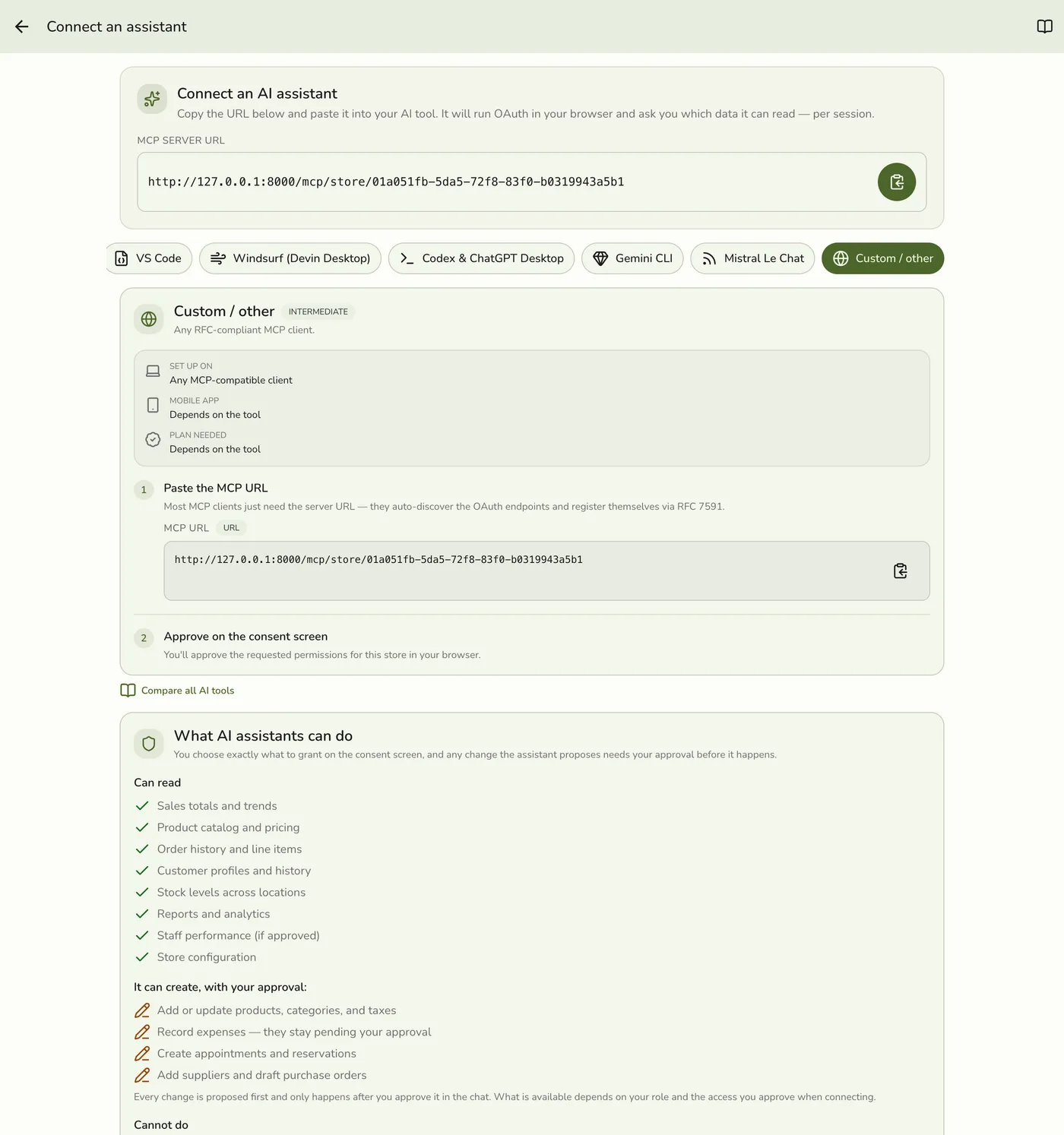
In the Fuze Store app, open Configurations → MCP → Connect an assistant and copy the MCP Server URL:
https://api.fuze-store.com/mcp/store/<your-store-id>
This URL is unique to one store. The store is set by the URL — there is no store picker on the consent screen.
Connect
Tools that can't open a browser
Server-to-server scripts and tools that can't complete a browser sign-in need a pre-minted Client ID and Client Secret. Create one under Configurations → MCP → Credentials, then see Setting Up AI Access.
Tools Known to Work
These aren't in the Connect screen's list, but they support remote MCP with OAuth and connect from just your MCP URL. All of them work on a free tier:
- Zed — a built-in sign-in button for authenticated servers.
- Kiro (AWS) — add the server in settings; organizations can restrict which servers are allowed.
- Amazon Q Developer CLI — add the server to its config file.
- OpenCode — dedicated commands for signing in, revoking, and debugging a connection.
- Docker MCP Toolkit — one command or one click, with each server in its own container.
Tools that need a bridge
Cline and Continue.dev accept remote server URLs but hand the sign-in to the mcp-remote bridge package rather than doing it themselves. They work, but expect one extra setup step and check their current docs — this is the part vendors change most often.
If Something Goes Wrong
If the tool can't discover the server, confirm it supports remote MCP over HTTP and OAuth2 PKCE. For Fuze-side issues, see the troubleshooting section of Setting Up AI Access.