

Attaching Tax to an Item
Products and services share the same catalog. Attach tax on the item’s Tax tab so the register applies it when that line is sold.
Paid plan required. Taxes is available on any paid plan (Starter and up). It is not included on the free Basic plan. View plans
Before you start
Create at least one tax under Configurations → Payments & Tax → Taxes. See Creating a Tax.
Steps
1
Open the product
Open Products (catalog) from the sidebar and open the product or service to edit — or create a new one.
2
Open the Tax tab
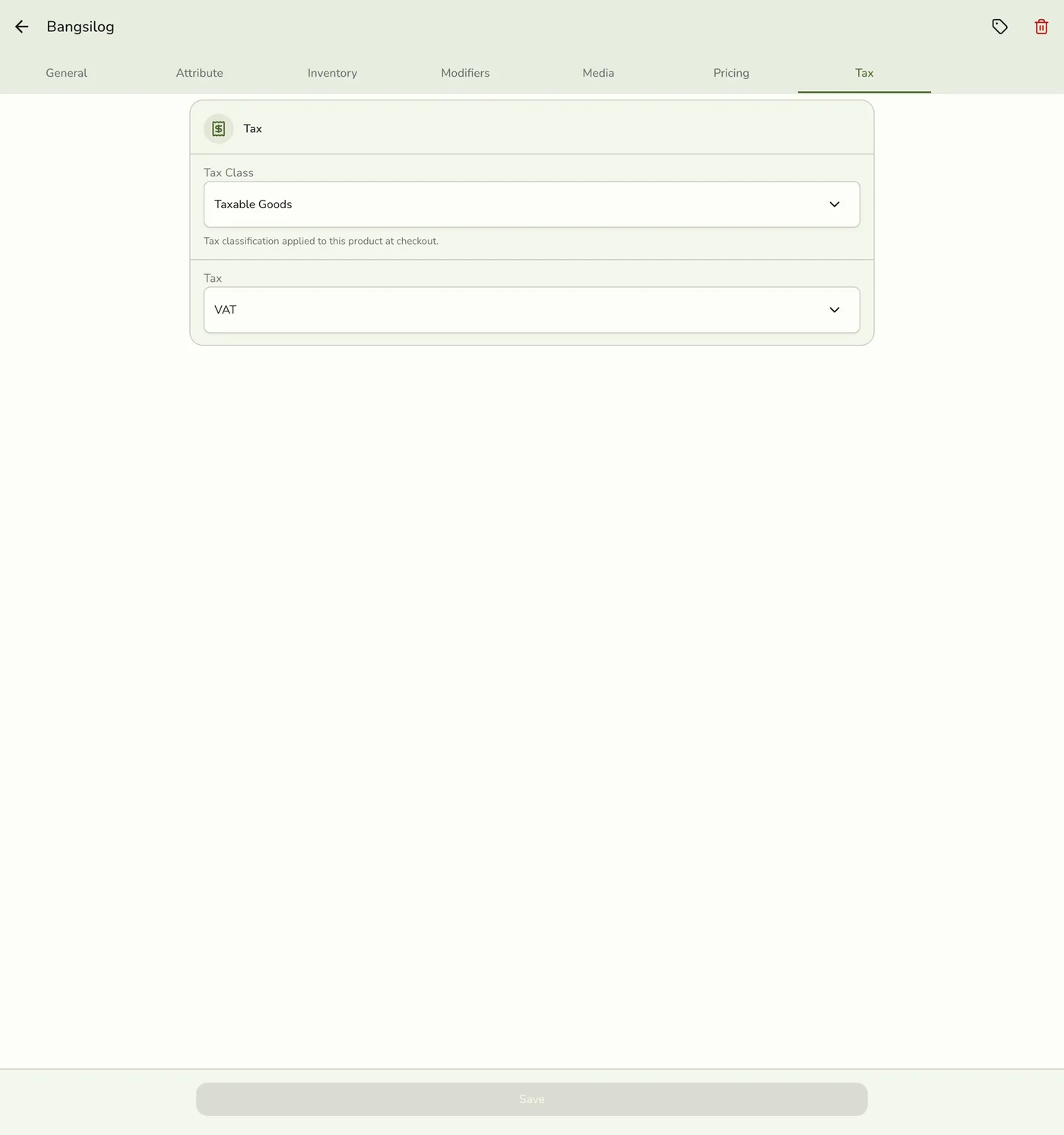
On the product form, open the Tax tab.
3
Set the tax class and rate
Set Tax Class (for example Taxable Goods, or None if the item should stay tax-free). When the class allows tax, pick the Tax rate from your Taxes list.
4
Save
Save the product.
On the next register sale of that item, tax is included according to the attached rate (while Tax is unlocked on your plan).
Tips
- Use None for items that are never taxed.
- Pharmacy and other templates may seed special rates (for example VAT-exempt) — attach the correct rate per item.
- For a one-off tax-free sale without changing the product, use Removing Tax When Ordering on the register instead.