

How to Add a Category
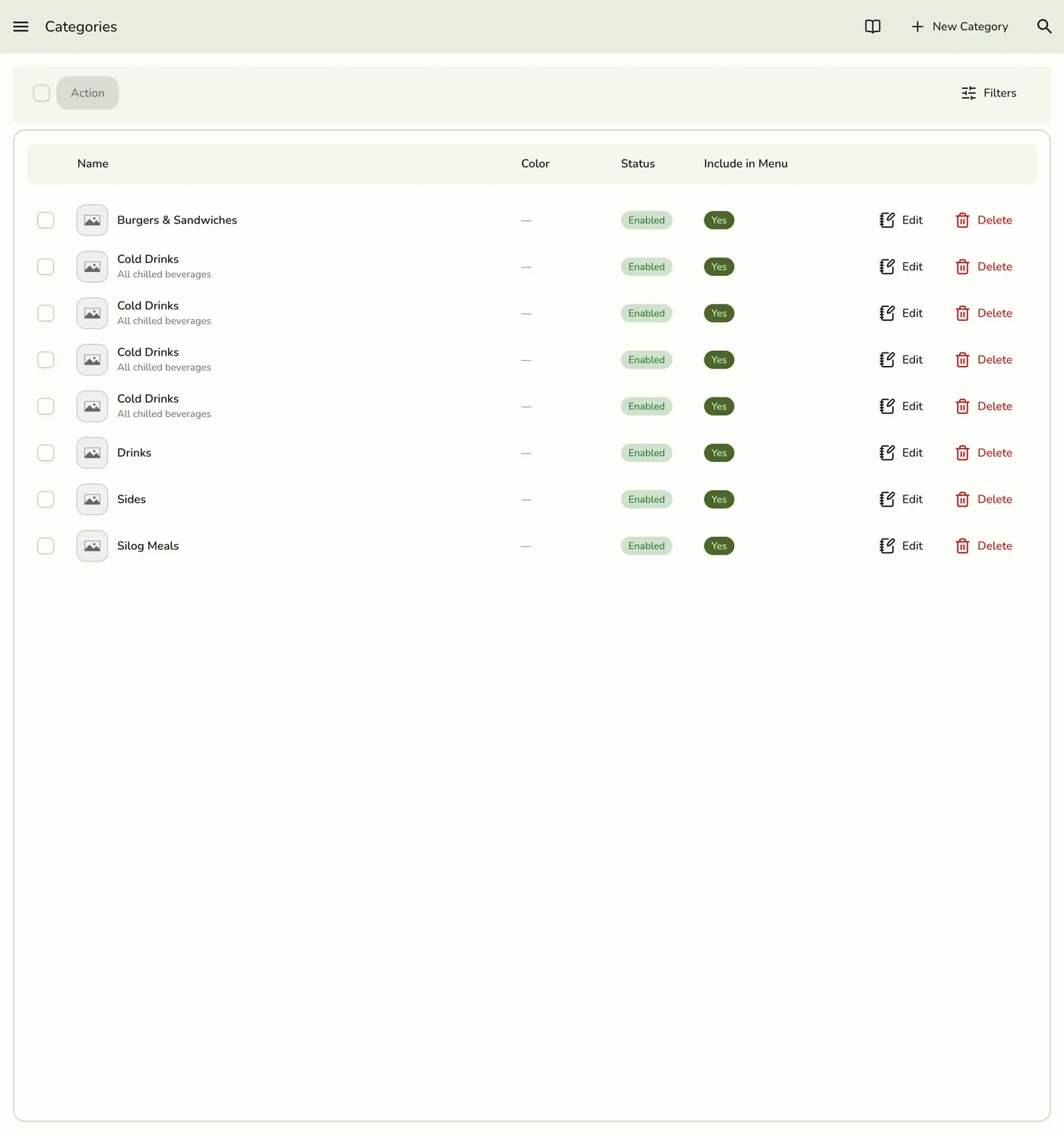
Categories help you organize products and services so staff and customers can find what they need. You might create categories like "Drinks", "Snacks", or "Packages" -- whatever fits your business.
Step-by-Step Guide
1
Open the menu
Click the sidebar menu icon to open navigation.

2
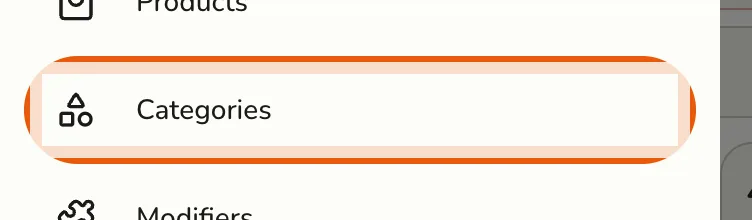
Go to Categories
Select Categories from the menu list.
3
Add a category
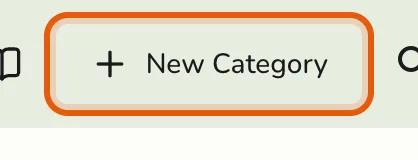
Press the New Category button at the top right of the category list page.
4
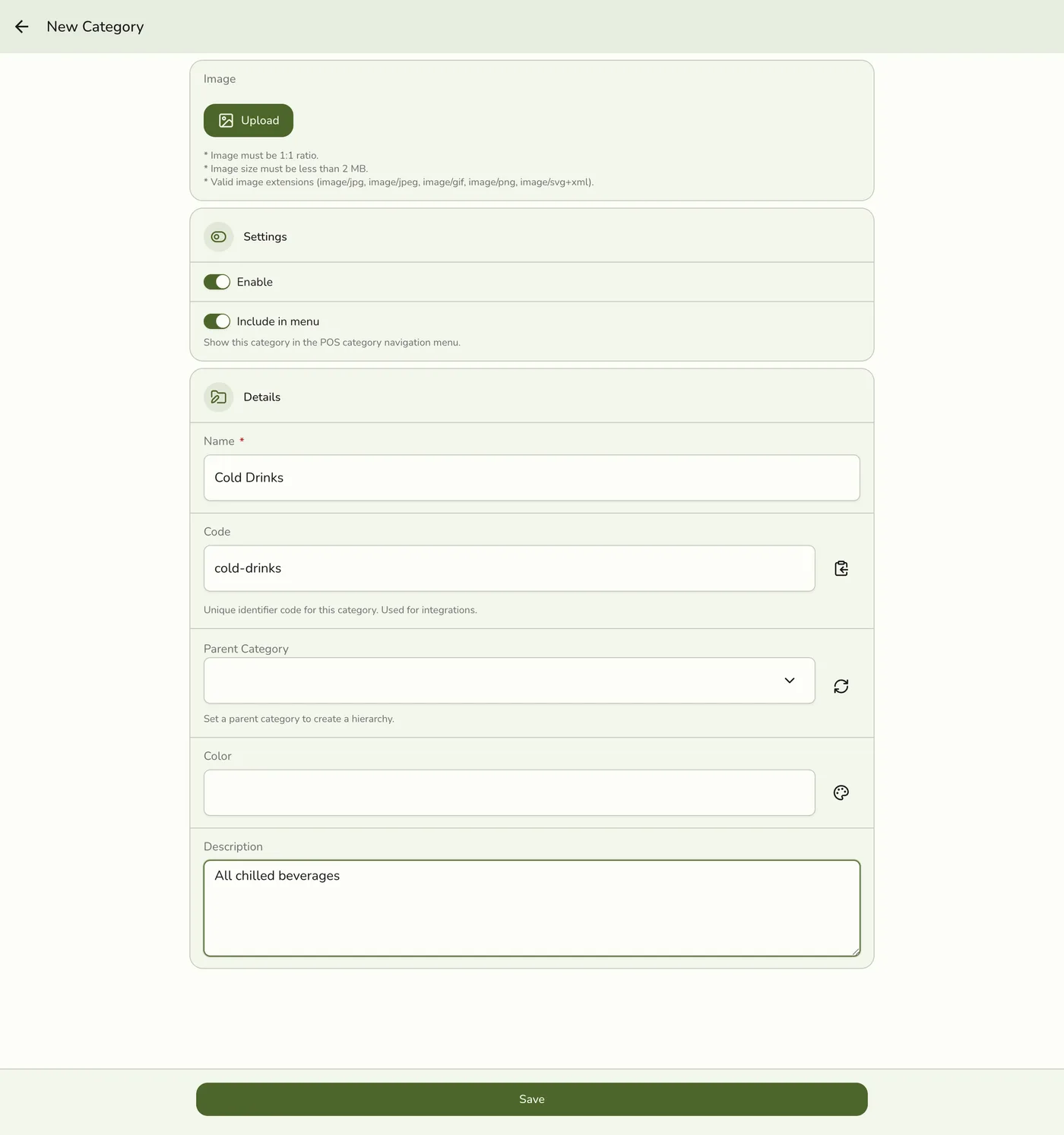
Fill in the details
Enter the information for your new category. See Field Explanations for what each field means.
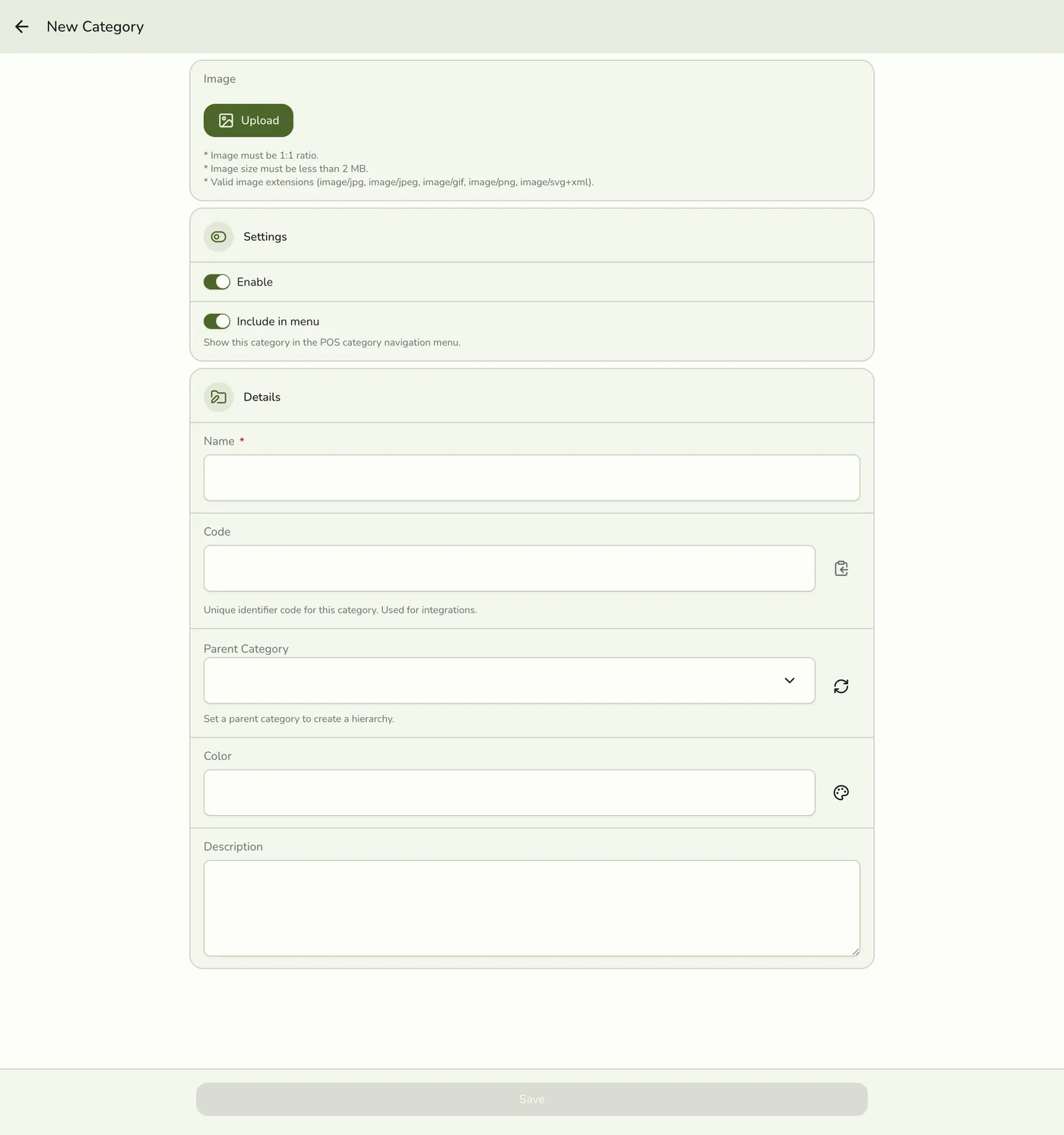
- Enable -- Keep this category active and visible (default is Yes).
- Include in Menu -- Show this category in your POS and digital menus (default is Yes).
- Category Name -- The name displayed in the app and menus (for example, "Drinks").
- Code -- A short code for internal use (for example, "drinks").
- Parent Category -- Choose a parent if this is a sub-category (optional).
- Description -- A brief note about what the category contains (for example, "All types of beverages").
- Color -- Pick a color to organize or highlight this category (for example, #FF5733).
- Image -- Upload an image or icon, or take a photo with your camera (phones and tablets) (optional).
5
Save
Click Save. Your new category appears instantly in the POS and menus.

Tips
- Make sure each Category Name is unique and easy to understand.
- Codes should not contain spaces (for example, use "hot-drinks" instead of "hot drinks").
- Add images and colors to make categories stand out for staff and customers.
- You can always edit or remove categories later as your offerings change.