

How to Update a Role
Add-on required. This feature requires the Roles & Permissions add-on to be active on your store. View add-ons
You can update a role to change what team members assigned to it can do. This is useful after promotions, team changes, or as your business grows.
Step-by-Step Guide
- Open the sidebar menu.
- Select Store from the menu. You will see a list of store settings.
- Select Roles & Permissions to open the roles management page.
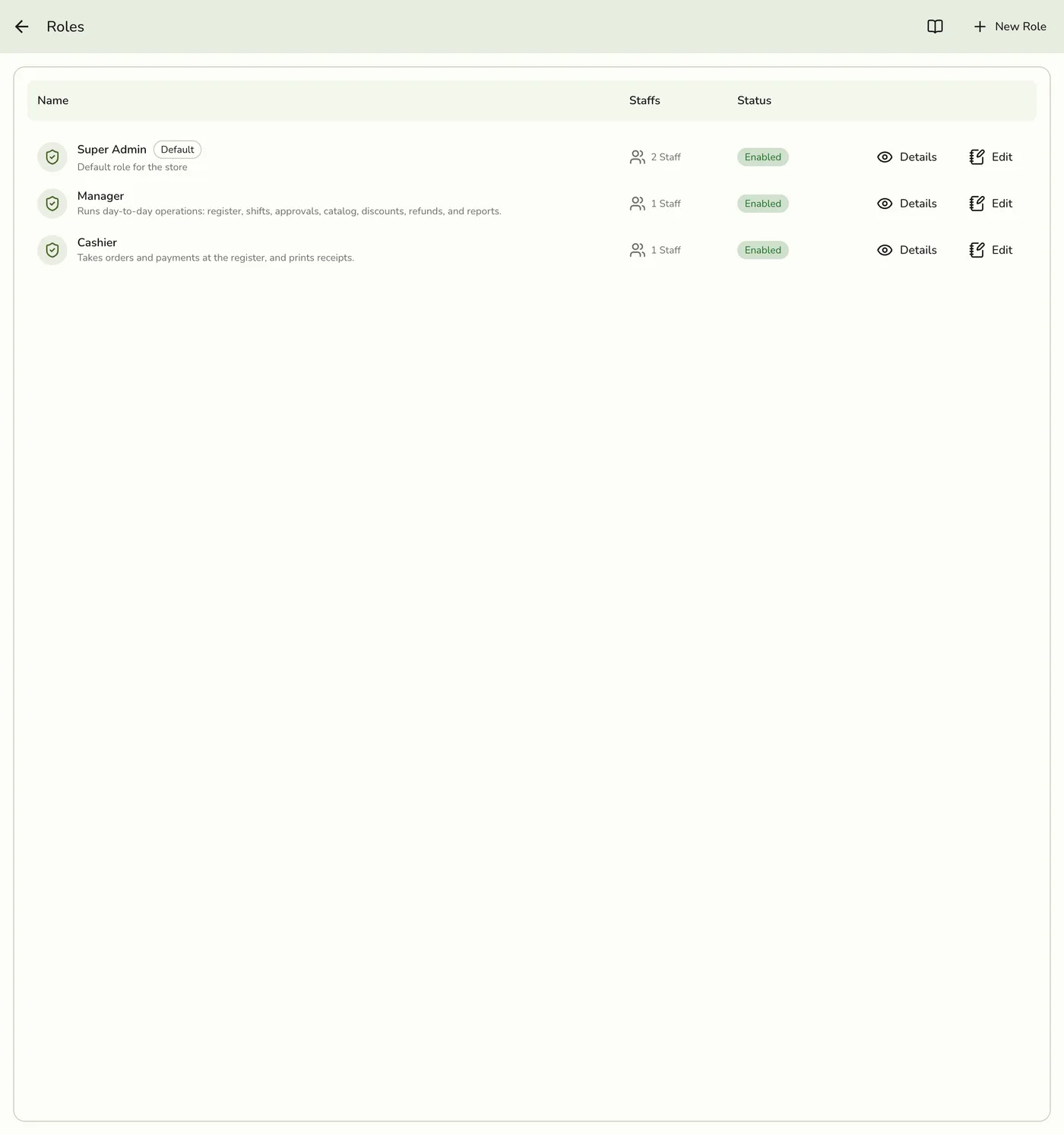
- Find the role you want to update (e.g., "Cashier" or "Manager").
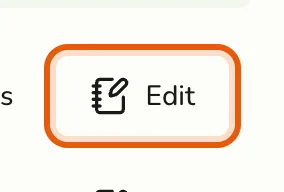
- Click Edit on that row.
- This opens the role's details page, showing its Role ID, Name, Code, Status, Permissions, and assigned Staff.
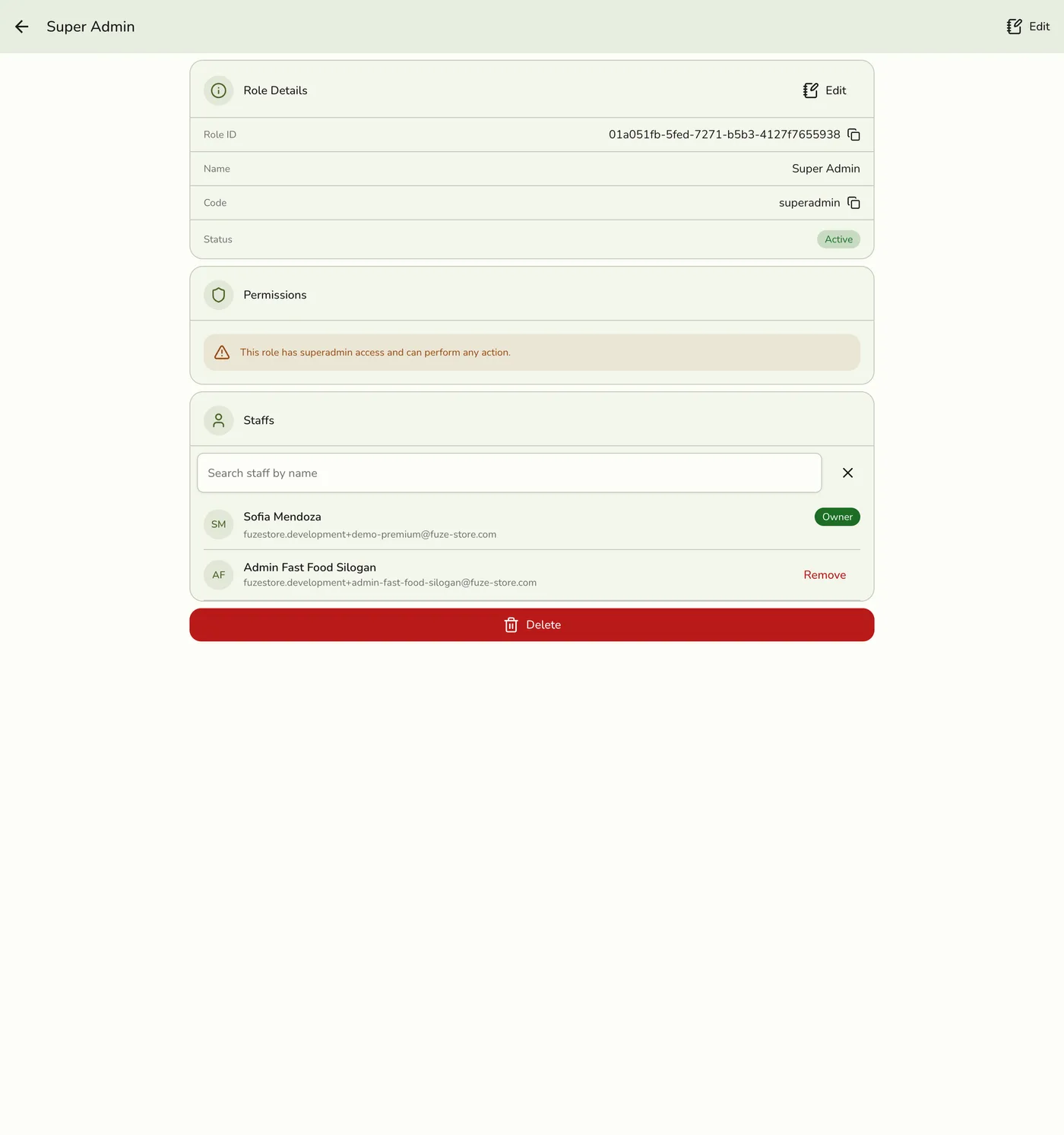
- Click the Edit button (top-right, or on the Role Details card) to open the editable form.
- Update the role:
- Change the name or description if needed. See the field explanations for details on each field.
- Adjust permissions by checking or unchecking actions. See the full permissions list for all available options.
- Click Save. The updated role takes effect right away for all staff assigned to it.
The role's details page also lets you search and remove assigned staff directly, and shows a Delete button at the bottom for removing the role entirely — see How to Delete a Role.
Tips
- Review roles regularly, especially after promotions or team changes.
- Only give sensitive permissions (like deleting data or changing settings) to trusted team members.
- Use clear names and descriptions so everyone knows what each role is for.
- You can always edit roles again later if your needs change.
Best Practices
- Keep permissions simple -- most staff only need basic access.
- Remove or update roles that are no longer needed to keep your system clean.
- Communicate changes to your team so everyone knows their responsibilities.