

Creating a Service
Create a service from Products — the same place you add products.
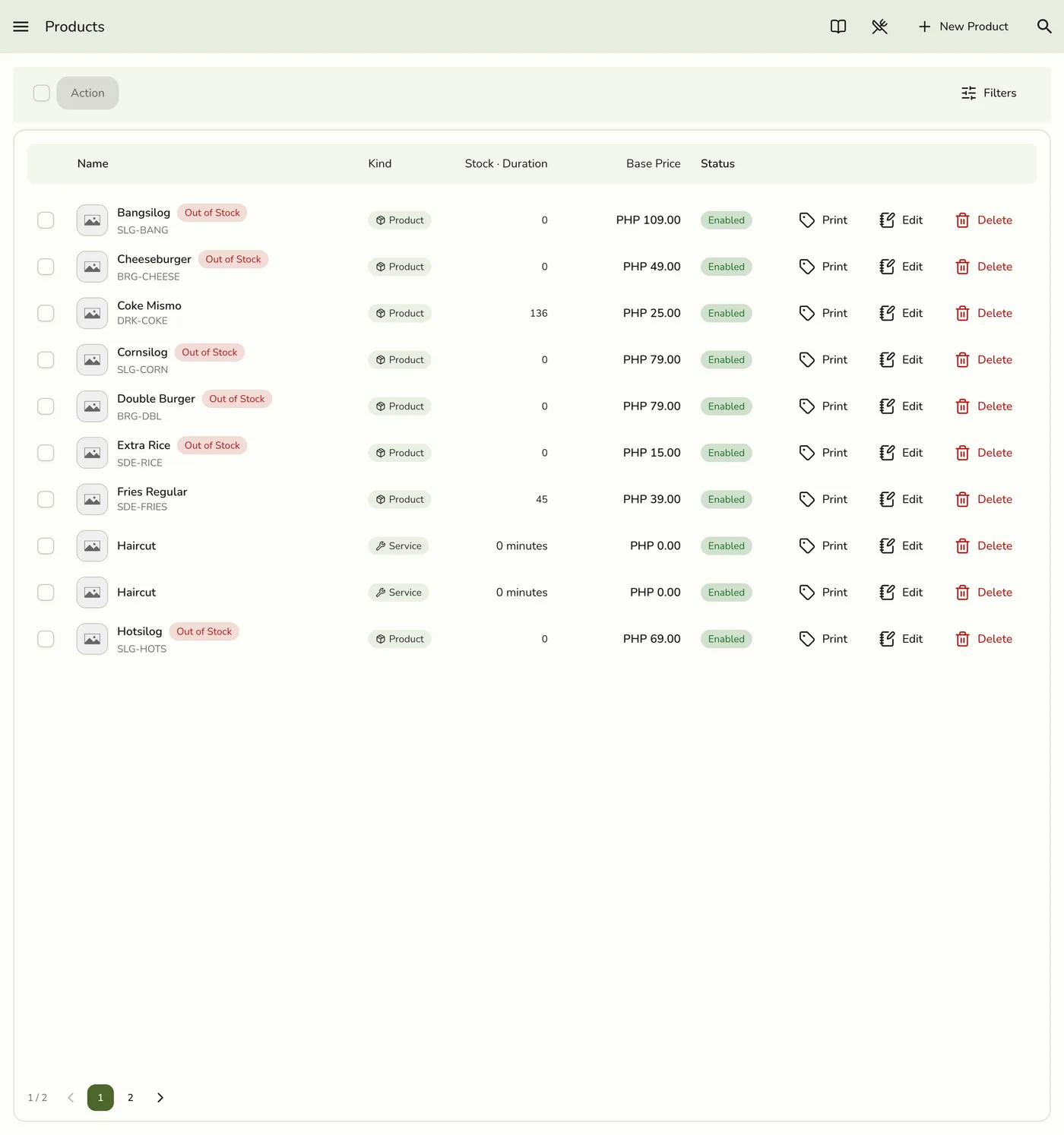
Step-by-Step Guide
1
Open the sidebar menu
Open the sidebar menu.

2
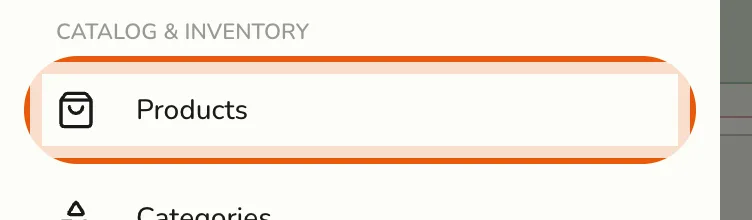
Select Products
Select Products (under Catalog). There is no separate Services menu.
3
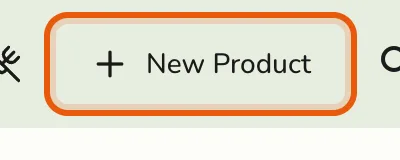
Tap New Product
Tap New Product.
4
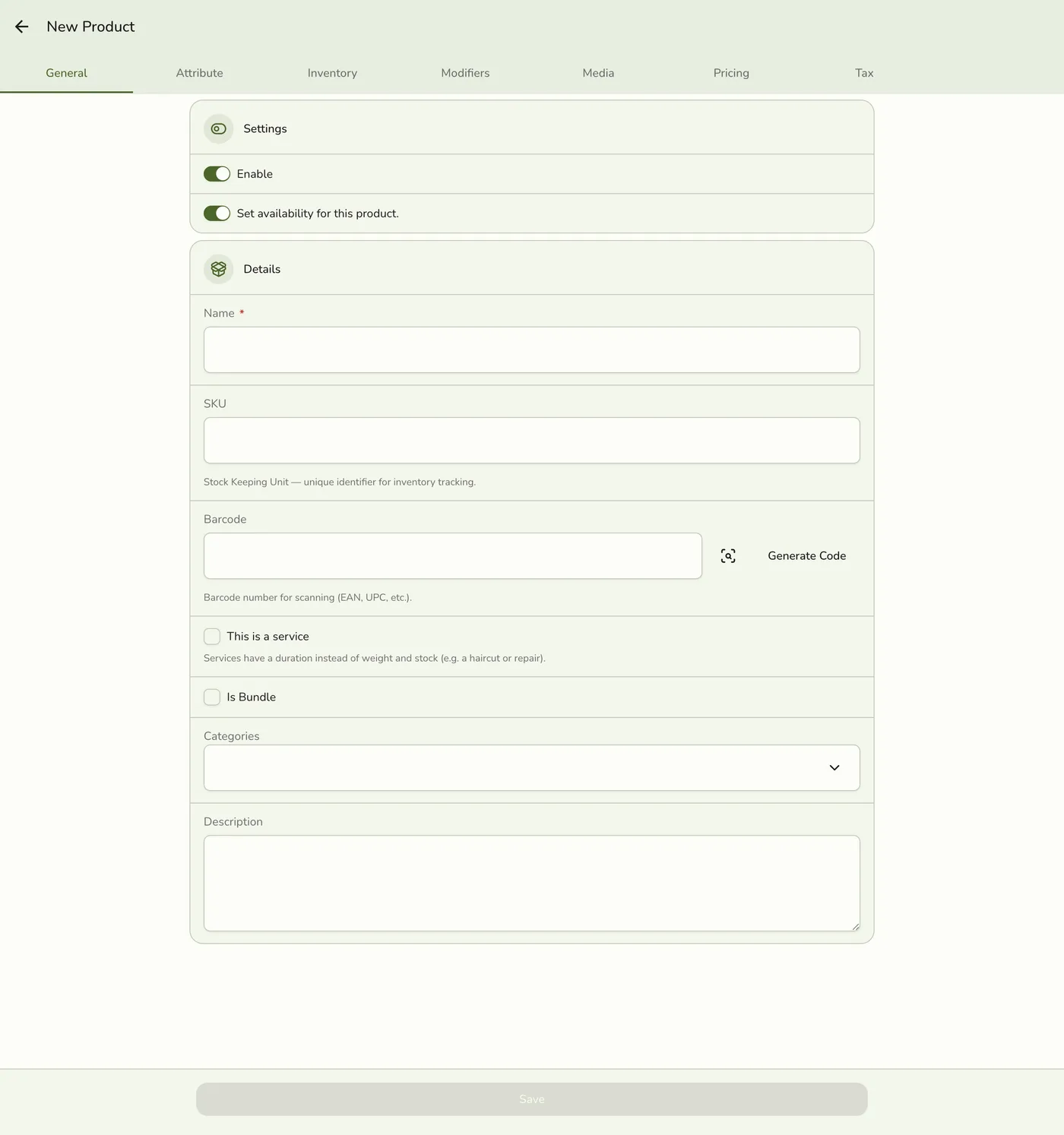
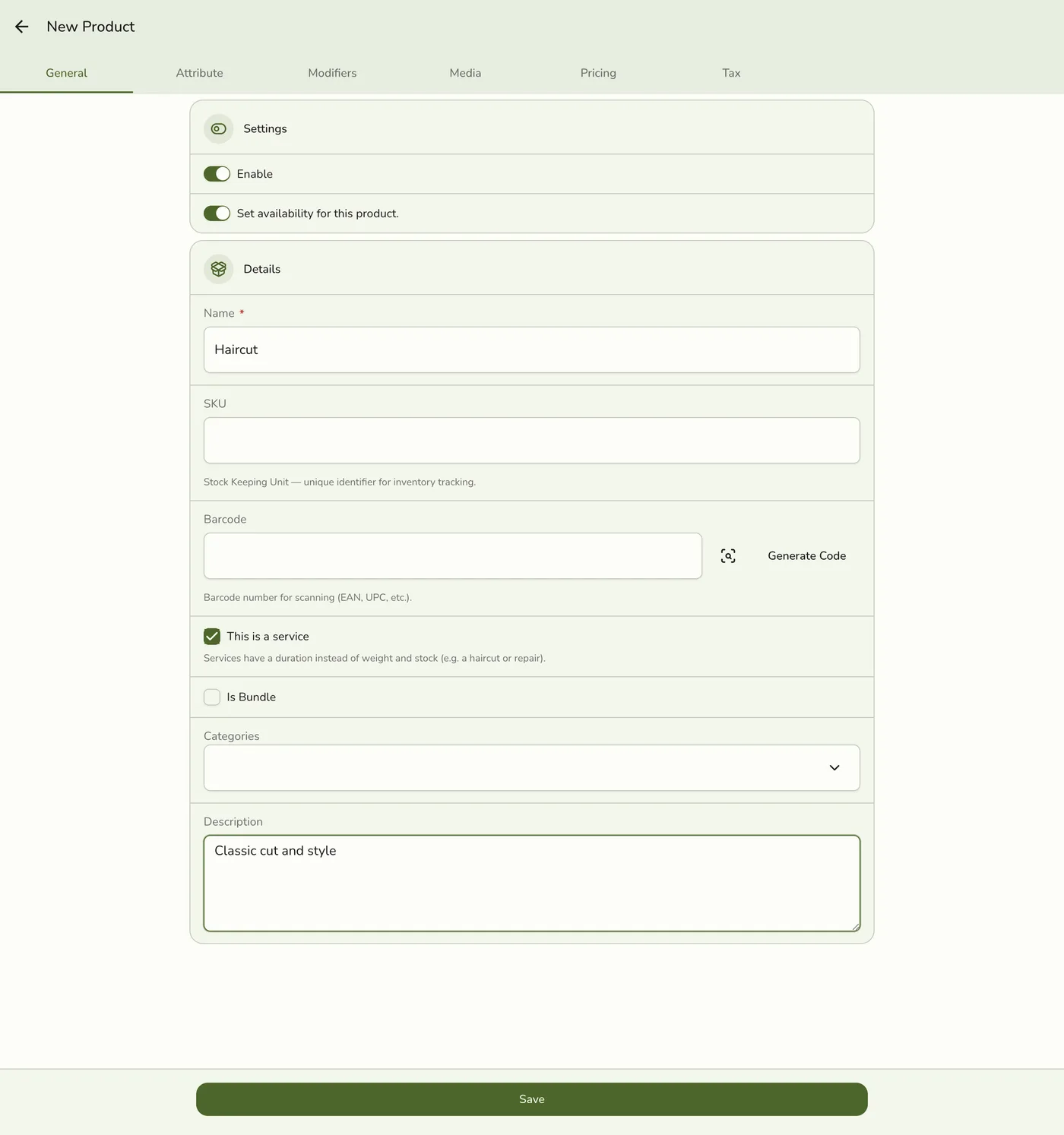
Turn on This is a service, then fill in the details
On General, turn on This is a service, then enter name, price, categories, and other details as usual.
5
Set the duration
Open the Attribute tab and set Duration and Duration Period.
6
Save
Tap Save. Filter the list with Service if you want to confirm it appears among services only.

See Service Overview and Product Overview for field details.
Tips
- Use clear names that include what the customer gets.
- Group similar services under the same category.
- Prefer modifiers for optional add-ons instead of many near-duplicate services.
- You can edit or disable a service later without deleting history.