

How to Add a Payment to an Order
Record how the customer paid on the POS register. The app supports multiple tenders and calculates change for cash.
Your store collects the money directly. Fuze Store does not process card or e-wallet payments for you. The customer pays cash, taps your own card terminal, or scans your own GCash/Maya/bank QR code. You then record that payment here so your sales stay accurate. Because you collect the money yourself, a payment never “fails” or sits pending in the app — once you take it, you record it as done.
Steps
Open the order
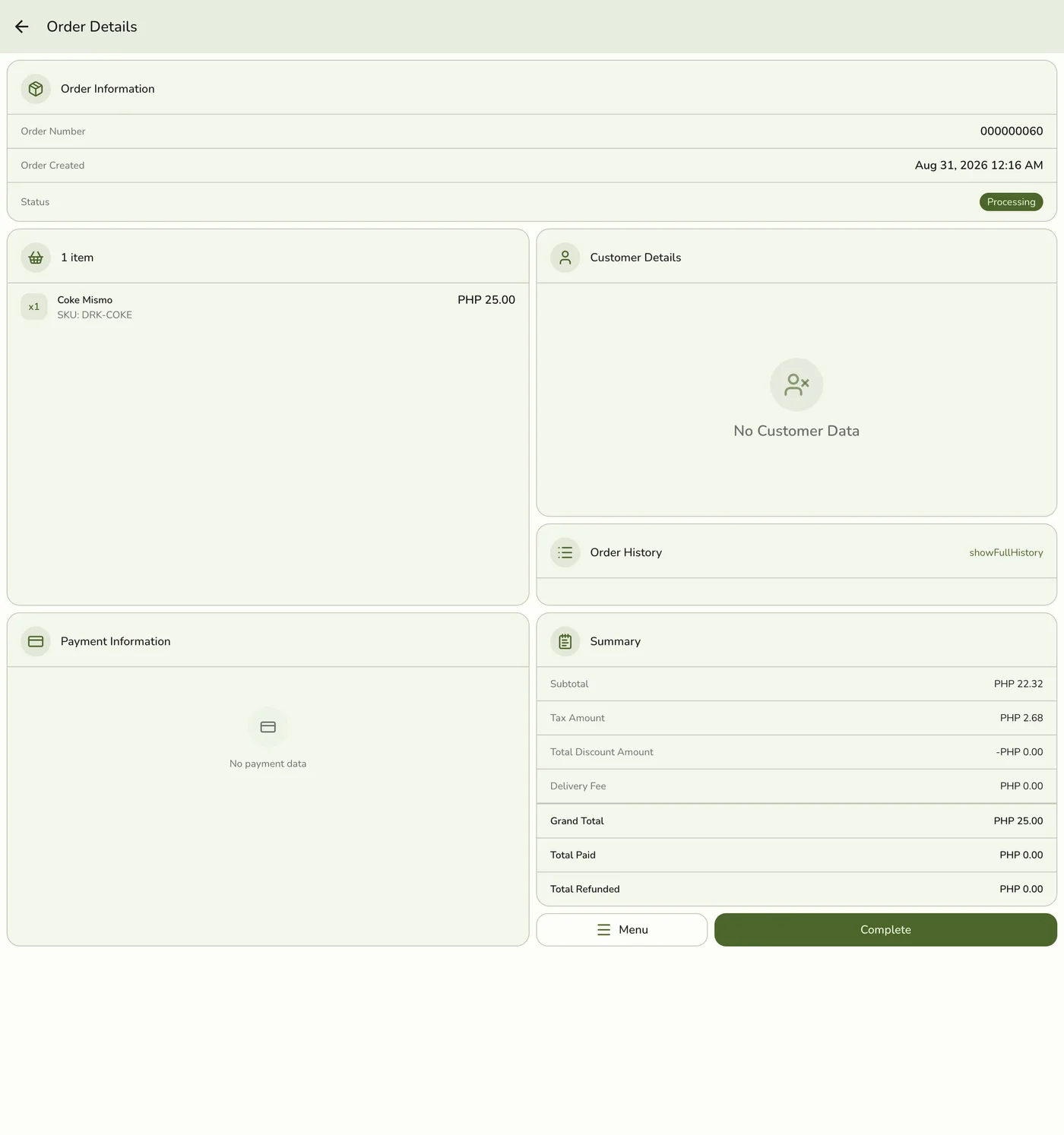
Ring up the order on the POS Register, then open its Order Details screen (from the Orders list, tap View Details). Before a payment is recorded, the order shows No payment data and a Total Paid of PHP 0.00.
Collect the payment
Collect the payment from the customer using your own channel — take the cash, run your card terminal, or show your store's QR.
Open Menu → Payments
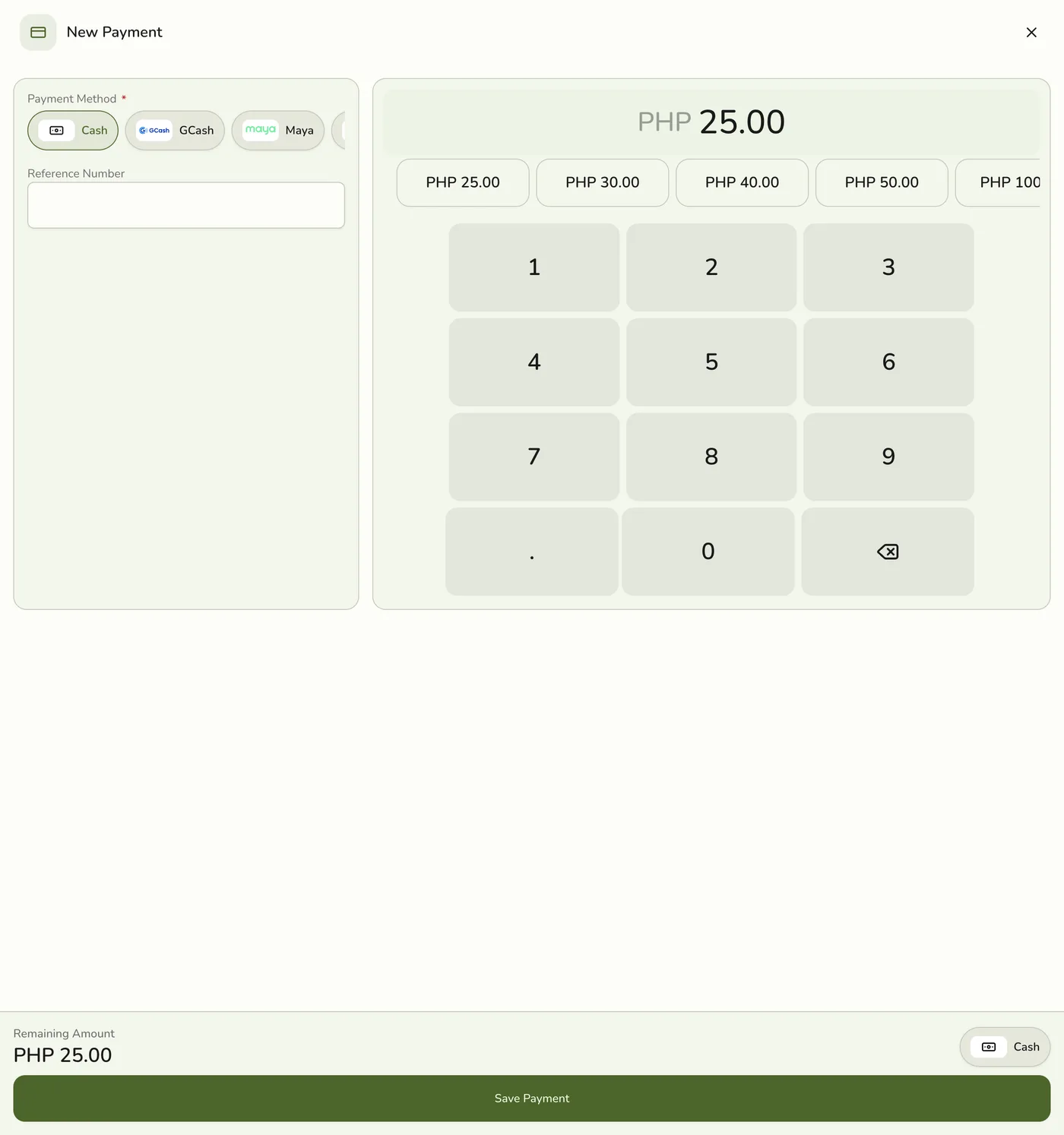
On the order detail screen, tap Menu, then Payments to open the New Payment sheet.
Choose the method and amount
Choose the payment method the customer used (Cash, GCash, Maya, and so on) and enter the amount received. The keypad's quick-amount buttons speed up common tender amounts, and for cash the app calculates any change. For non-cash payments, note a reference (GCash reference, card slip number) in the Reference Number field.
Save the payment
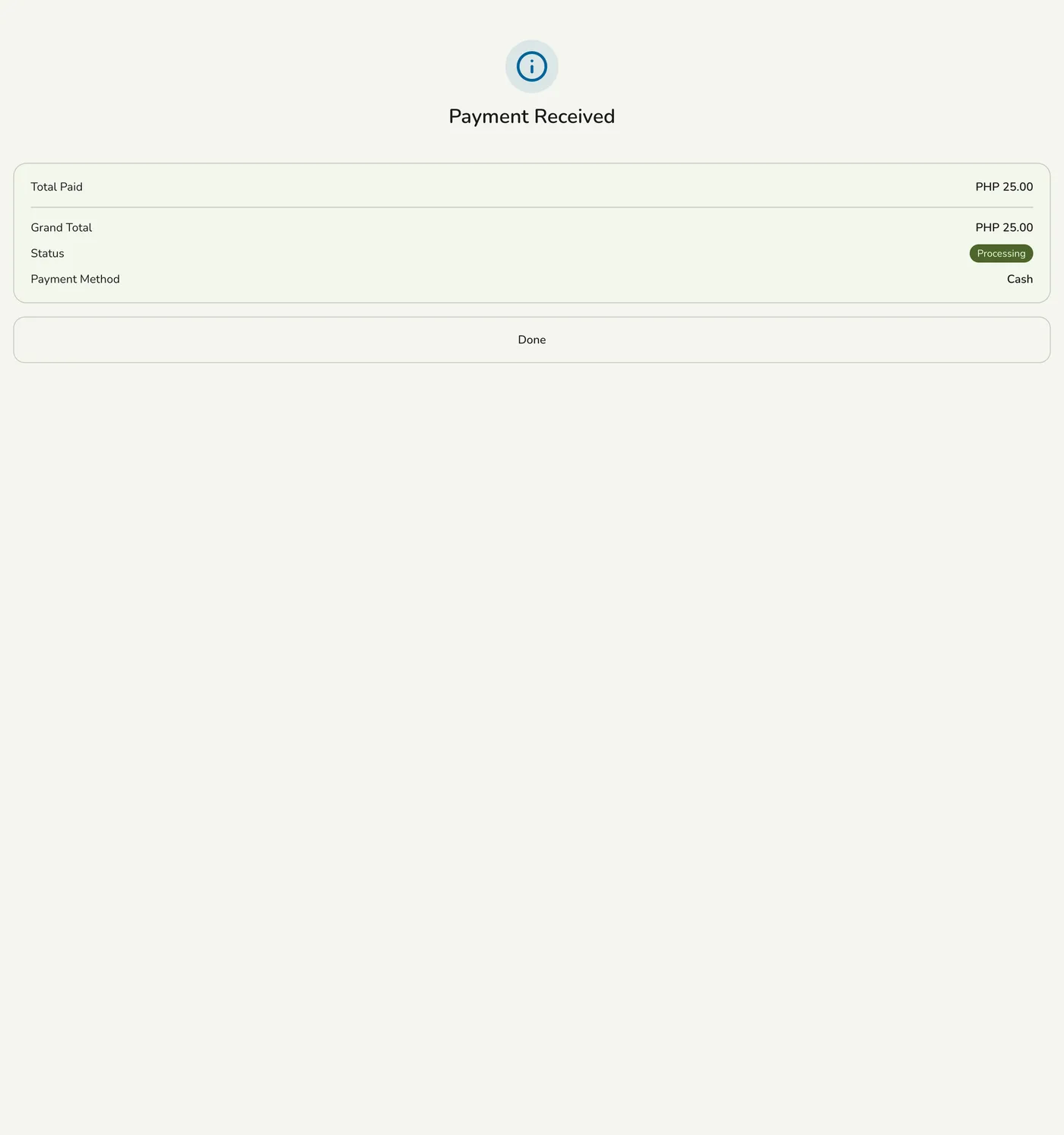
Tap Save Payment. The order now shows the recorded tender and an updated Total Paid.
Tips
- Confirm the money actually arrived before you record a digital tender.
- Use split payments when a customer pays with more than one method.
- Keep terminal slips or e-wallet references for later lookup.